 AnimeGameVerse
Zenless Zone Zero: Unlocking the Hidden Camera (Without Losing Your Mind)
Zenless Zone Zero camera feature guide for PC and mobile shows hidden shortcuts, key combos, and photo mode tricks for stunning screenshots.
HoYoverse games have a knack for burying the camera feature in plain sight. In Genshin Impact, a cute little Kamera icon sits smugly on the Paimon Menu. In Honkai: Star Rail, the photo button is right there in the top‑right corner, waving hello. Then along comes Zenless Zone Zero, and the camera? It’s playing hide-and-seek like a shy cat under the couch. New Agents in 2026 might still wander Sixth Street for twenty minutes, clicking every menu tab, convinced their game is bugged. Relax – the feature exists, and once you learn the secret handshake, it’s easier than dodging a Thanatos.
This guide covers the PC key‑combo magic (the only way that still sends rookies into a tailspin), along with every tweak, zoom trick, and Polaroid‑style saving option. Mobile players have it simpler – just tap the camera icon in the top‑right corner – but for the keyboard warriors, the adventure begins here.
🕵️ The Great Camera Hunt (A Tragicomedy in One Act)
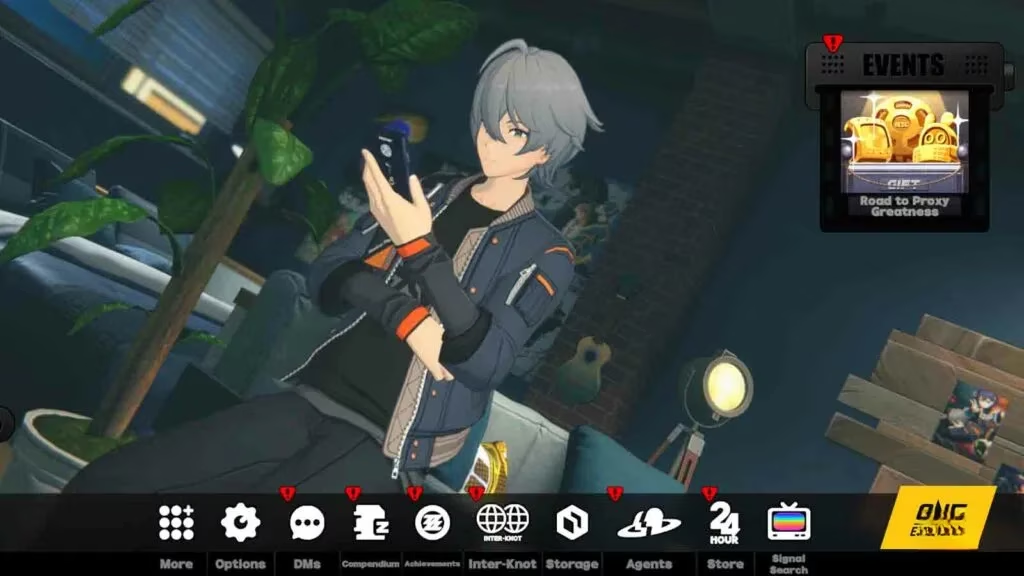
Open the main menu by pressing Esc or expanding the Tab. You’ll see your agent posing, a row of icons, and a stubborn absence of anything resembling a camera. Click More? Nope. Click Options? Still nothing. If you’re used to other HoYoverse titles, your brain will short‑circuit. Many Agents have rage‑quit the photo quest, convinced it’s a mobile‑only feature. But no – the camera is hiding behind a mouse‑and‑keyboard ritual that feels like activating a cheat code in an old PlayStation game.
The secret? The F button overlay. While you’re wandering New Eridu, a tiny F sits in the bottom‑right corner, whispering “Interact.” Hold Alt, and a half‑circle of shortcuts blooms around it. One of them is the camera. But mis‑time your release, and you’ll accidentally open Settings instead. It’s a delicate dance.
🎮 Step‑by‑Step: How to Summon the Camera on PC
-
Hold the
Altkey on your keyboard. Don’t just tap it; keep it pressed. -
Move your mouse cursor over the
Ficon at the bottom‑right corner of the screen. You’ll see it light up with a subtle glow. -
Long‑press the left mouse button on the
Ficon. A semi‑circular Quick Menu will appear – it’s filled with lime‑green‑highlighted options. -
Release the
Altkey the millisecond that menu spawns. If you holdAlttoo long, the game assumes you wanted the Settings gear and boots you there. Timing is everything. -
Slide your mouse left or right to navigate the Quick Menu items. The active option will have a bright lime‑green background.
-
Select the second icon – a classic camera silhouette. Click it, and the world dims into photo mode.
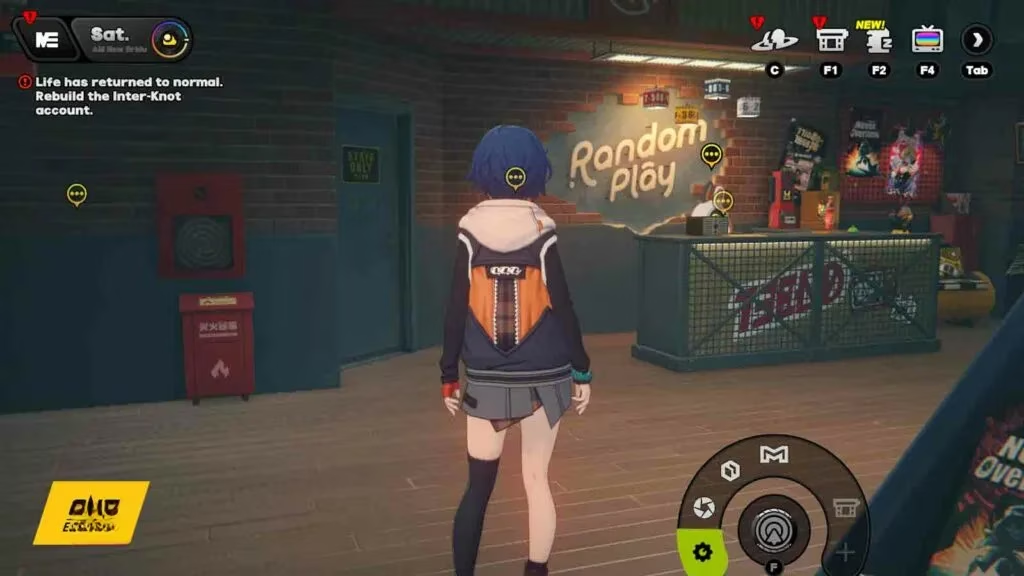
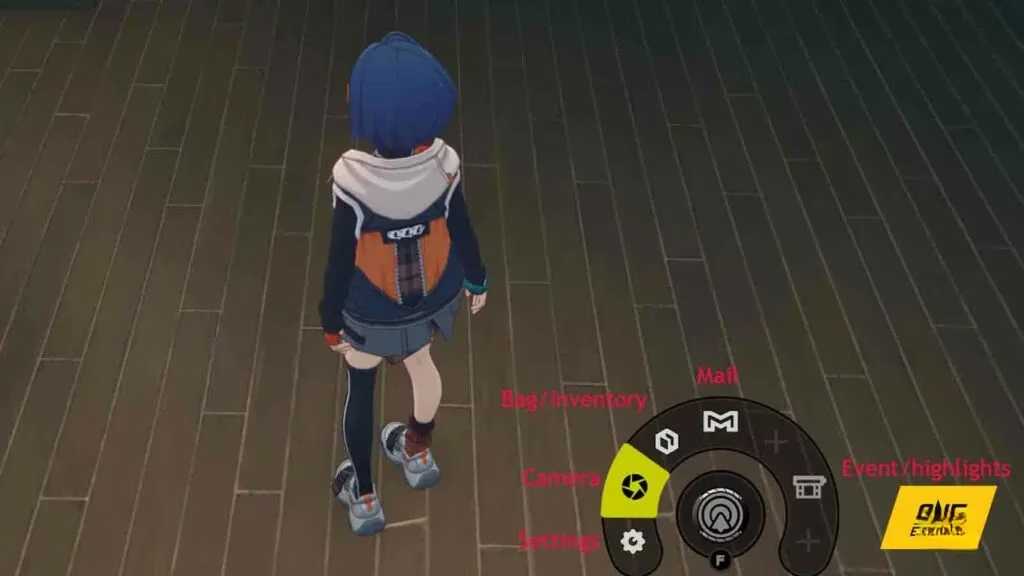
If this sounds like a mini rhythm game, that’s because it is. After a few attempts, your muscle memory will kick in, and you’ll be snapping memories faster than a Bangboo can deliver a parcel.
📷 Tweaking Your Shot – Zoom, Hide, Reset
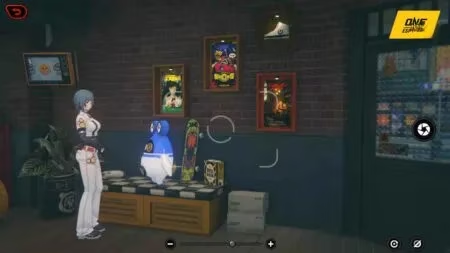
Once you’re in photo mode, the interface is mercifully intuitive – a welcome reprieve after the summoning ritual. At the bottom of the screen, you’ll see + and - signs to adjust zoom. You can also use your mouse’s scroll wheel for buttery‑smooth magnification, perfect for framing that dramatic skyline or a close‑up of your agent’s new drip.
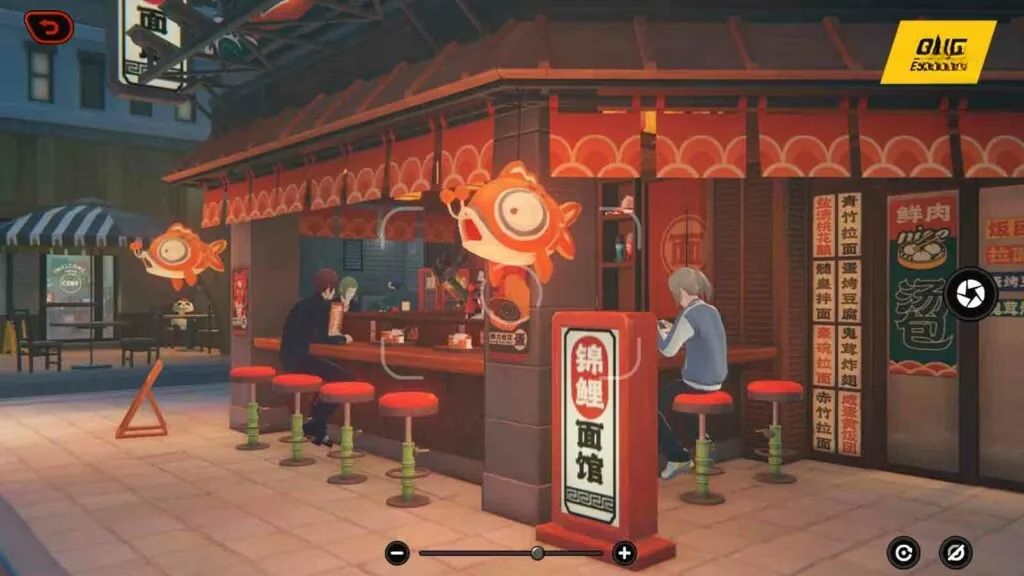
To the right, an eye icon hides the entire UI so you can check your composition without any clutter. Beside it sits the redo button – a lifesaver if you’ve twisted the camera angle into a pretzel and urgently need to reset to default.
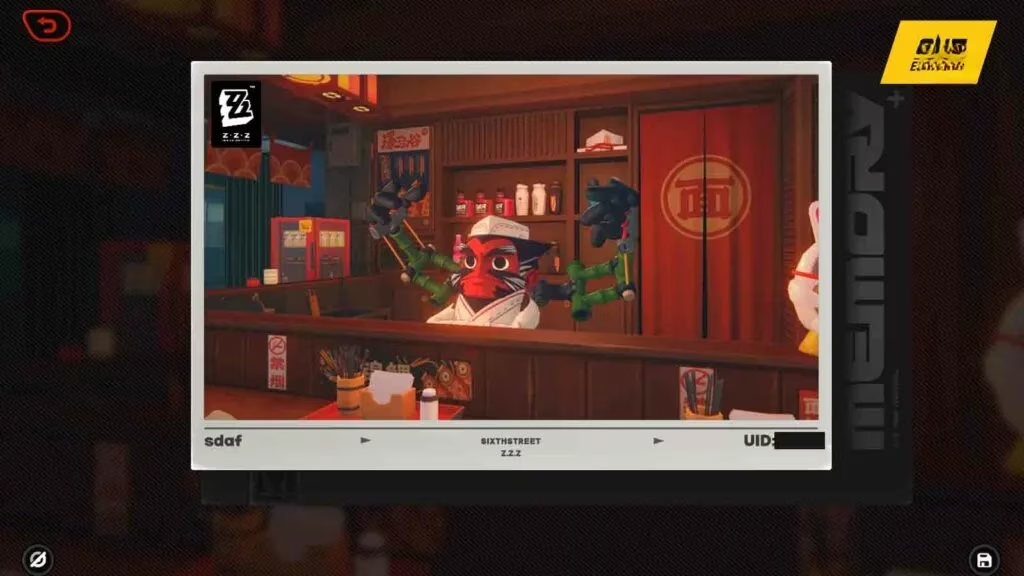
When the framing is just right, click the large circle button on the right edge of the screen. There’s a satisfying shutter sound, and suddenly you’re staring at a retro Polaroid‑style preview.
💾 Saving & Hiding Your Identity
The Polaroid layout is pure HoYoverse charm. It displays:
-
Your IGN on the left,
-
The photo location (e.g., Sixth Street) smack in the middle,
-
Your UID on the right.
If you’d rather keep your in‑game identity off the final image (maybe you’re sharing it on a forum and don’t want random friend requests), click the eye icon at the bottom left of the Polaroid. Toggle it, and both IGN and UID vanish like a phantom, leaving only the location stamp if you still want a hint of authenticity.
To save the masterpiece, hit the save icon at the bottom right. The image lands directly on your hard drive, ready for bragging rights or hoarding. The game doesn’t dump it into a labyrinthine folder; it’s neatly placed in the standard screenshot directory your PC game uses, so future you won’t need a treasure map to find it.
🧩 Customizing the Quick Menu (For Lazy Agents)
Tired of that two‑step tango every time you want the camera? The Quick Menu can be tailored to your whims. Click the little plus sign at the end of the semi‑circle, and you can add more shortcuts – up to seven icons. Drag the camera icon to the very first slot, and next time you hold Alt + left‑click, it’ll be the first option under your mouse. No more precise nudging; just a quick flick and you’re in photo mode.
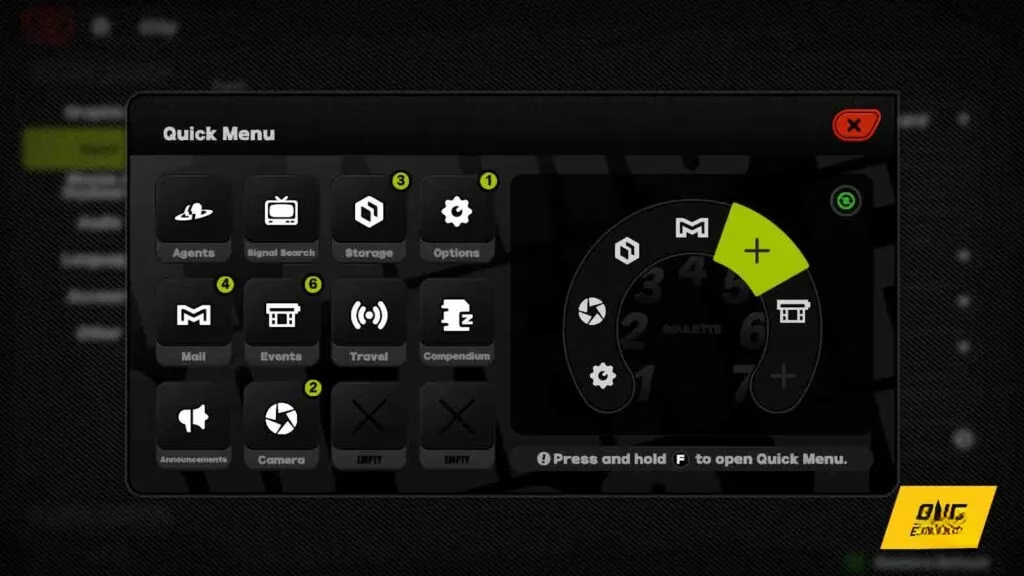
Pro tip: Stick the inventory and mail shortcuts on the far side; the camera deserves a front‑row seat. This tweak transforms the “secret ritual” into a one‑click affair, and you’ll wonder why HoYoverse didn’t just give the camera its own permanent button on the HUD. But where’s the fun in that?
📱 A Quick Word for Mobile Agents
On iOS and Android, Zenless Zone Zero plays nice. The camera icon lives proudly in the top‑right corner of the screen, as conspicuous as a neon billboard. Tap it, and you’re instantly in photo mode with touch‑friendly controls. All the same zoom, hide‑UI, and reset features apply. So if you’re feeling lazy, just switch to mobile for your photo sessions – no arcane key combos required.
📸 Why Bother? Photo Quests and Beyond
Several in‑game commissions and event tasks require you to snap specific NPCs, graffiti, or peculiar creatures. Knowing the PC camera summoning means you won’t abandon the quest halfway through. Beyond chores, the photo mode is your personal scrapbook – capture that ridiculous companion pose, the sunset over Lumina Square, or the moment a random stray cat photobombs your shot. The Polaroid aesthetic gives everything a nostalgic, lo‑fi charm that’s perfect for sharing with fellow Proxy pals.
So next time someone complains that ZZZ has no photo mode, send them this guide and watch their jaw drop when they finally press Alt + F with the right timing. Happy snapping, Agent! 🎞️
Comments